Policy Manager is an AI-powered module within Data Governance that enables business stewards and data stewards to create and enforce policies with minimal manual effort. It automates policy draft creation, business rule generation, and enforcement activities.
Policy Manager addresses following key challenges:
-
Speed: AI-assisted policy creation reduces time from weeks to hours
-
Consistency: Automated rule generation ensures policies are enforced uniformly
-
Accessibility: Non-technical users can create and manage policies
-
Compliance: Enforcement tracking provides audit trails for compliance
-
Scalability: Apply policies across multiple databases and environments
Supported Policy Types
-
Data Classification
Classifies data assets by sensitivity level such as Public, Internal, Confidential, and Restricted. For example, "Mark all customer PII as Confidential."
-
Data Masking
Hides sensitive data in environments. For example, "Mask credit card numbers in DEV databases."
-
Data Retention
Defines data lifecycle and deletion schedules. For example, "Delete transactional logs older than 90 days."
-
Manual Policies
Business policies from Business Glossary Manager listed for reference. Not directly enforced through Policy Manager.
Ensure that your administrator has enabled the Policy Manager permissions for you.
Supported Environments
Policy Manager supports the following databases for policy enforcement:
-
Snowflake
-
Databricks
To access Policy Manager, go to Application Menu > Data Governance > Policy Manager.
The Policy Manager page appears, with the Policies tab open by default.
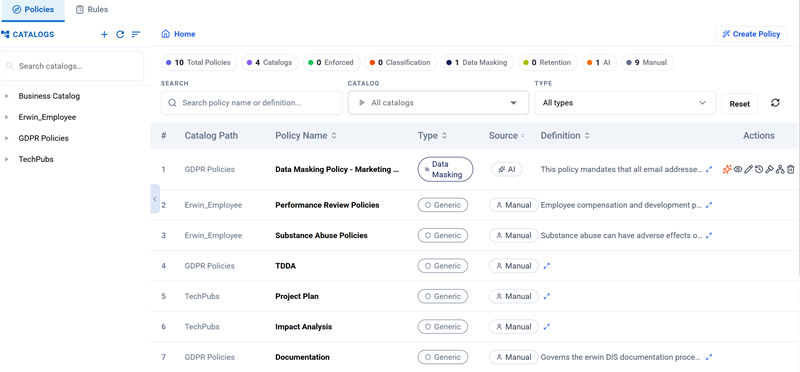
The Policy Manager page provides a centralized workspace for data governance teams to create, organize, and maintain business policies across all catalogs.
Two tabs allow you to switch between governance objects:
|
Tab |
Function |
|---|---|
|
Use this section to create and manage policies. |
|
|
Use this section to view rules and the activity log for rules. |
The Policies tab is the active view that lists all business policies across your catalogs. Use the summary chips to quickly filter the list by policy type, search by policy name or definition, and narrow results further using the Catalog dropdown. From this tab, you can view, manage, and take actions on existing policies, and create a new policy using the Create Policy button.
You can also add a new catalog from Policies tab. Click  at the top of the catalog panel.
Actions
Each policy row in the list includes an Actions column. The following functions are available for each policy:
-
 - AI Explain - Generates a plain - English summary of the policy using AI, based on all policy components including its definition, rules, and metadata.
 -
 - View Policy - Opens the full policy details in the default display format, showing the policy name, description, definition, draft status, and associated metadata.
 -
 - Edit Policy - Re-opens the policy creation wizard, allowing users to modify the policy definition, associated assets, linked rules, or any other attributes.
 -
 - Activity Log - Displays a complete audit trail of all changes made to the policy, including updates to assets, definitions, descriptions, and linked rules.
 -
 - Enforce Policy - Executes the AI-generated SQL queries on the connected data source through Quest DI to enforce a policy.
 -
 - Mind Map - Displays all associations and relationships for a policy.
 -
 - Delete - Removes the policy along with all its associations and rules.
For more information, refer to the Creating Policies and Managing Policies topics.
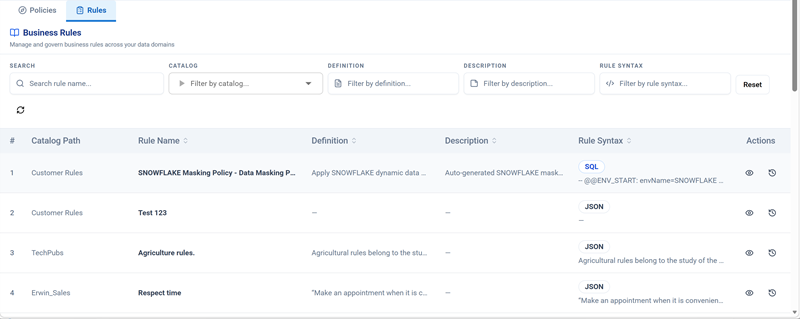
The Rules tab lists all business rules across your data domains. Use the available filters to search and narrow the list, and take actions on individual rules directly from the table.
Actions
Each rule row includes the following actions:
-
- View Rule - Opens the full rule details in the default display format, showing the rule name, catalog path, definition, description, and syntax.
-
- Activity Log - Displays a complete audit trail of all changes made to the rule over time.